
What Vehicle Motion Cues are
Vehicle Motion Cues is an iPhone accessibility feature. Apple describes it as animated dots around the display that reflect how the vehicle is moving. The idea is to give your eyes a visual reference tied to the ride, not only to the page or app in front of you.
Appearance options may include pattern, color, dot size, and dot count, depending on your iOS version. If a label on your device differs from this guide, follow the menus you actually see.
Turn on Vehicle Motion Cues
- Open Settings on your iPhone.
- Choose Accessibility, then Motion.
- Choose Vehicle Motion Cues.
- Select On or Automatic. On some iOS versions this appears as a show-or-hide control with an automatic option.
- If you want faster access later, add the control to Control Center.
Apple’s support pages also describe a Customize Appearance path from the same screen. Use it if you want the dots quieter, larger, or easier to see against a particular background.
On versus Automatic
On keeps the cues available while you use the phone. Automatic is meant to appear during supported road travel so you do not have to remember the setting at the start of every trip. If Automatic does not appear when you expect it, turn the feature on manually or use Control Center before the vehicle starts moving.
Set this up as a passenger, and before the ride if you can. Do not change accessibility settings while driving.
When Apple’s built-in cues may be enough
If you want visual references across the whole iPhone with minimal setup, start with Apple’s feature. It is built into iOS, can appear in other apps, and can turn on automatically during supported road travel. Many passengers will never need another tool.
How AntiSick is different
AntiSick is not a replacement for an iOS accessibility setting. It is a separate passenger app you open when you want a dedicated ride. The difference is what each one covers, not which one “works better.”
| Vehicle Motion Cues | AntiSick | |
|---|---|---|
| What it is | An iOS 18 accessibility setting | A separate passenger app, iOS 17 and later |
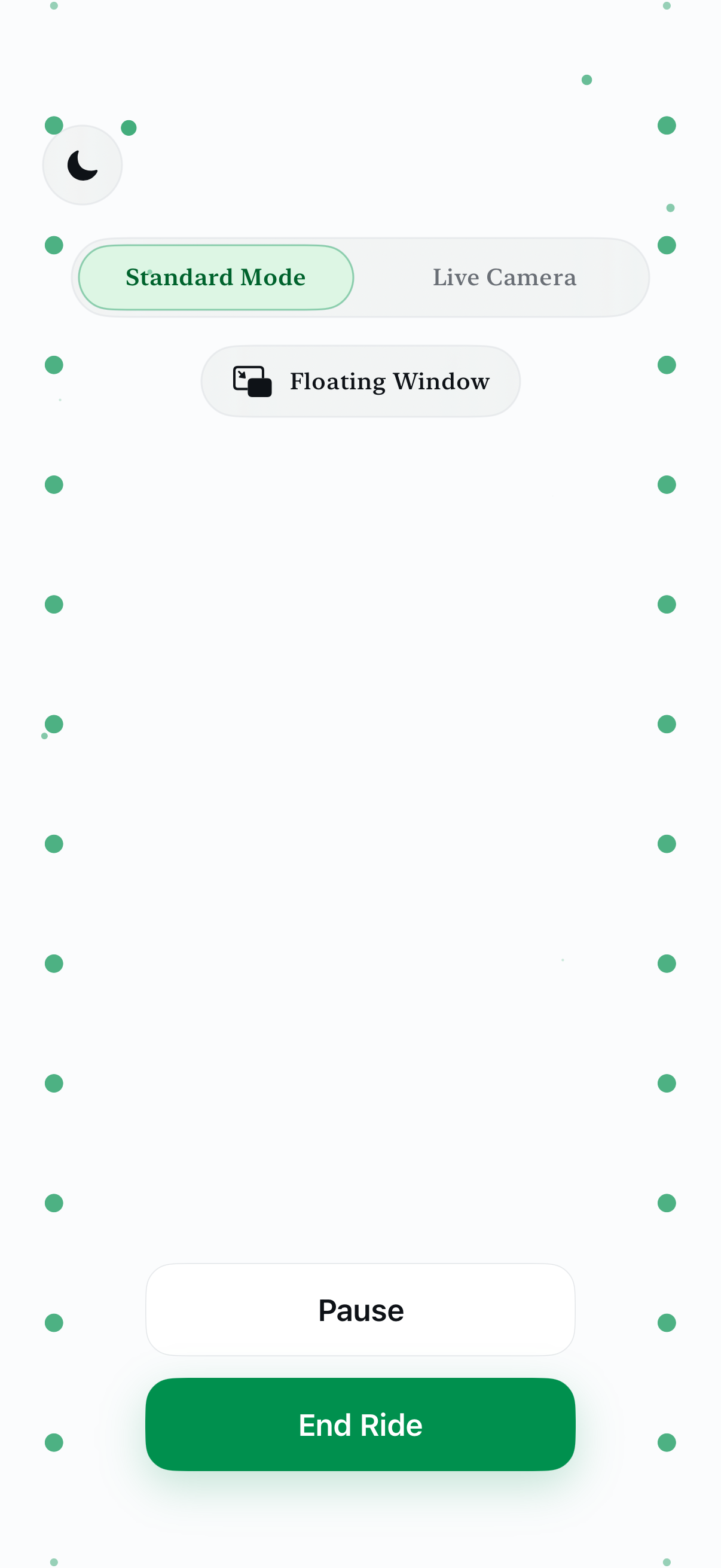
| Where it shows | On the system display, including over other apps | Inside AntiSick. Standard Visual can stay in a Floating Window |
| Audio and breathing | No | Yes. Separate Audio and Breathing rides |
| Who starts it | On, or Automatic on some road trips | You start one ride yourself |
| Cost | Included with iOS | One complete ride free in each mode |
You can use both, one, or neither
Some passengers stay with the iOS dots alone. Some prefer AntiSick Visual, Audio, or Breathing. Some try Apple’s cues while reading and switch to AntiSick audio if looking at the screen starts to feel worse. None of these options works for everyone. Stop any visual tool that increases discomfort or distracts you from your surroundings.
The dots themselves can also be too much. If the animation pulls your attention away from the road view, or if a busy pattern makes the screen feel noisier, turn the feature off or choose a quieter appearance. A comfort tool that you notice too strongly is no longer doing its job.
Passenger safety: Do not configure or use motion cues while driving. Stop using any visual tool if it increases discomfort or distracts you from your surroundings.
Three comfort modes, one calm toolkit
Try one full Visual, Audio, and Breathing ride free in AntiSick.
Questions
How do I turn on Vehicle Motion Cues on iPhone?
Open Settings, then Accessibility, then Motion, then Vehicle Motion Cues. Choose On or Automatic. Labels can vary by iOS version.
Can I use Vehicle Motion Cues and AntiSick together?
Yes. They are independent. You can use Apple’s setting, AntiSick, both, or neither on a given ride.
Is AntiSick a replacement for Apple’s setting?
No. AntiSick is an independent passenger app. Vehicle Motion Cues remain an iOS accessibility feature.
Should I set this up while driving?
No. Configure iPhone settings and AntiSick only as a passenger, preferably before the vehicle moves.
Source
AntiSick is an independent app and is not affiliated with or endorsed by Apple. This guide describes product features and is not medical advice.